Table of Contents
I primarily do all my text-based work in Neovim. However, there are aspects of other text-editing platforms which I really like. An example of this is the interactive nature of Jupter notebooks. I also often have to work with Jupyter notebooks for presenting and sharing code, and so, in this post I’ll walk through how I work with the two. It’s a pretty simple setup, and while there are plugins which allow for more sophisticated functionality, this workflow has served me well for a long time, and gives me the access to the parts of notebooks I like while still being able to use all the tools I normally use when working in Neovim.
Jupytext
I wanted two main things from this setup: be able to write code in Neovim and easily share it as a notebook, and interactively execute blocks of code. Jupytext takes care of the first part. It allows me to write markdown and code blocks in a Python file and keep the Python file in sync with a corresponding Jupyter notebook. The main bits of configuration on the Jupytext side of things is converting a notebook to a Python file (or vice versa) and keeping them synced:
jupytext --set-formats py,ipynb notebook.ipynband telling Juptext to use multiline comments for markdown blocks when converting a notebook to a Python file (it uses line comments by default):
jupytext --update-metadata '{"jupytext": {"cell_markers": "\"\"\""}}' notebook.ipynb --to py:percentWith this, a Python file would look like:
# %% [markdown]"""# Heading## Subheading
Import the square root function from the `math` module"""
#%%from math import sqrt
# %% [markdown]"""Below is a function which returns the square root of its input."""
# %%def primes(n: int | float) -> int | float:    return sqrt(n)
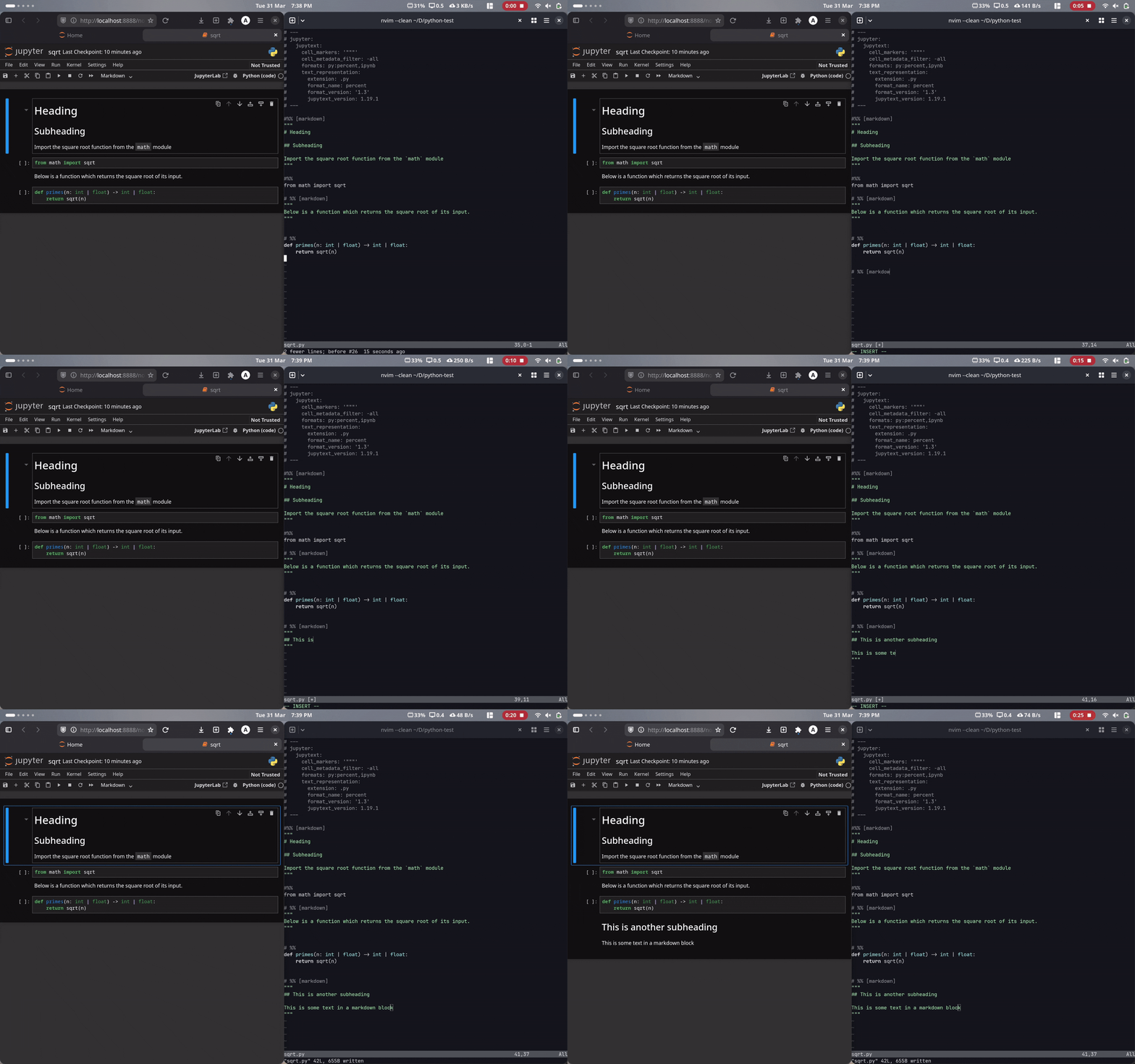
And since the notebook and the Python file are synced, any changes to the Python file are reflected in the notebook:
Interactive code execution
The main functionality I wanted from the notebook style workflow was being able to execute blocks of code and see their output without having to run the whole file. The way I achieve this in Neovim is with a Lua script which spawns an IPython process and allows me to send lines/blocks/selections of code to the REPL. The whole script can be found here. The main aspects of the process are creating an IPython job, capturing the code we want to send and then getting it into a form that can be sent to the REPL to be executed.
Each job spawned is identified by a unique ID which shares the same ""key-space” as a valid channel-id. This is stored and kept track of for the currently running job.
local M ={}
M.job_id = nil
The main function for starting the IPython job:
M.create_repl = function()  if not M.job_id then    vim.cmd("botright 15new")    M.job_id = vim.fn.jobstart({ "ipython" }, {      term = true,      on_exit = function()        M.job_id = nil      end,    })
    vim.wait(100, function()      return false    end)  endend
Here, if there isn’t a job assigned to job_id, we create a split and assign job_id
to a new ipython job. term = true spawns the corresponding command in a new
pseudo-terminal (PTY) session connected to the current buffer. Setting job_id back to
nil on_exit ensures that if the job is closed we can run the function again to start
a new one. Adding a small delay avoids sending input before IPython has fully loaded.
Sending just the current line to IPython is simple:
M.send_repl_line = function()  M.create_repl()
  vim.fn.chansend(M.job_id, vim.fn.getline "." .. "\n")end
vim.fn.chansend() sends data to the given job/channel-id and writes it to the stdin of
the process. vim.fn.getline(".") gets the line under the cursor. Concatenating a new
line literal makes sure the line gets executed when it’s sent to IPython.
The following helper function is used to return visually selected text:
local get_selection = function()  local start_pos = vim.api.nvim_buf_get_mark(0, "<")  local end_pos = vim.api.nvim_buf_get_mark(0, ">")  local text = vim.api.nvim_buf_get_text(0, start_pos[1] - 1, start_pos[2], end_pos[1] - 1, end_pos[2] + 1, {})
  return table.concat(text, "\n")end
Here, we get the text between the start and end visual selection marks.
nvim_buf_get_text() is 0 indexed and end-column exclusive, hence start_pos[1] - 1
and end_pos[2] + 1. This text can then be sent to the REPL:
M.send_repl_selection = function()  M.create_repl()
  local selection = get_selection()  local bracketed_paste_start = "\x1b[200~"  local bracketed_paste_end = "\x1b[201~"
  vim.fn.chansend(M.job_id, bracketed_paste_start .. selection .. bracketed_paste_end .. "\n")  vim.wait(50, function() return false end)end
Similar to the M.send_repl_line function, we first start the IPython job if it doesn’t
exist. But notice here we’re wrapping the selected text in escape sequences for
bracketed paste
mode.
When Neovim sends text to a terminal job it is essentially sending a stream of
characters over a PTY. The terminal, therefore, doesn’t know the difference between text
that’s been manually typed and text that’s been sent by vim.fn.chansend(). In IPython,
new lines can either trigger execution or auto-indentation, depending on the context of
the text. For example, when entering a for loop in IPython:
n = 100total = 0for i, j in range(n): total += i print(total)when you hit enter after the for loop line, the next line gets indented automatically. But when this text gets sent over the PTY the indentation gets pasted literally on top of each new line being autoindented. This leads to the text being pasted in as
for i, j in range(n): total += i print(total)Wrapping the selection text in bracketed paste escape sequences ensures that literal newlines and spacing is preserved and IPython processes the text as one full pasted block.
If you’re unfamiliar with terminal escape codes
\x1bstarts an escape sequence (\x1bis the hexidecimalESCcharacter), and[200~and[201~represent the beginning and ending bracketed paste mode escape sequences.
The script lives in nvim/lua/repl.lua, and then I have keymaps to call each function
set in nvim/after/ftplugin/python.lua:
-- Send current linevim.keymap.set("n", "<leader>pp", function() require("repl").send_repl_line() end)
-- Send visual selectionvim.keymap.set("x", "<leader>vv", function()  vim.cmd 'exe "normal \\<Esc>"'  require("repl").send_repl_selection()end)
-- Send current paragraphvim.keymap.set("n", "<leader>vp", function()  vim.cmd 'exe "normal vipj\\<Esc>"'  require("repl").send_repl_selection()end)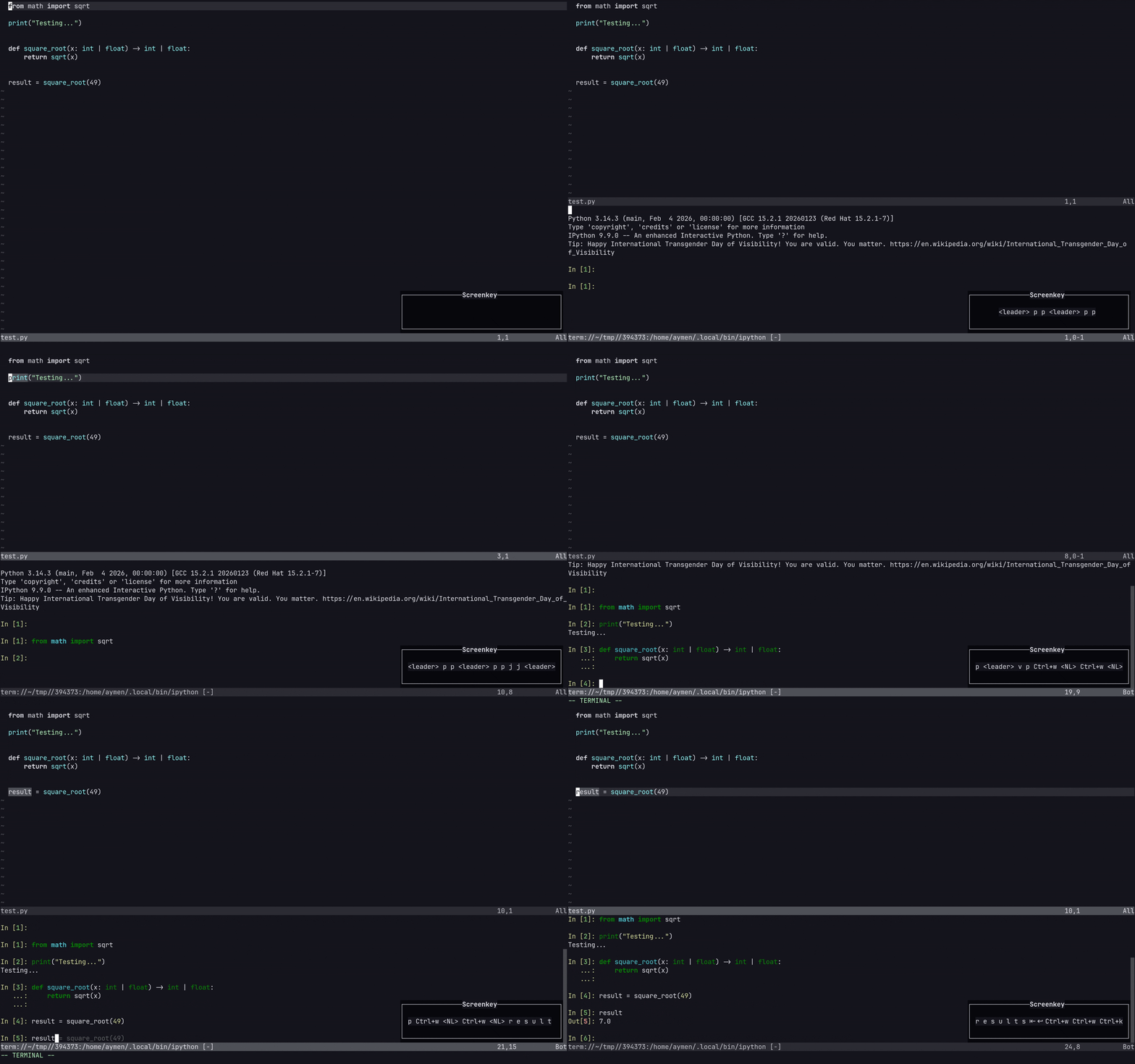
Plugin alternatives
If you don’t want to do the manual Jupytext setup, the
jupytext.nvim plugin does what I described
automatically when you open an .ipynb file.
jupynium.nvim is another plugin which
provides a live preivew of the jupyter notebook. Plugins like
magma-nvim and
molten.nvim also exist, which allow for
interactive code execution with a jupyter kernel. I wrote this script really just for
fun and so it’s very much tailored to my needs, so these plugins may or may not be
better suited to you depending on your requirements.
References
Jupytext
Neovim job_control
Neovim jobstart()
Neovim chansend()
XTerm bracketed paste