A small plotting tool using Neovim and PyQtGraph
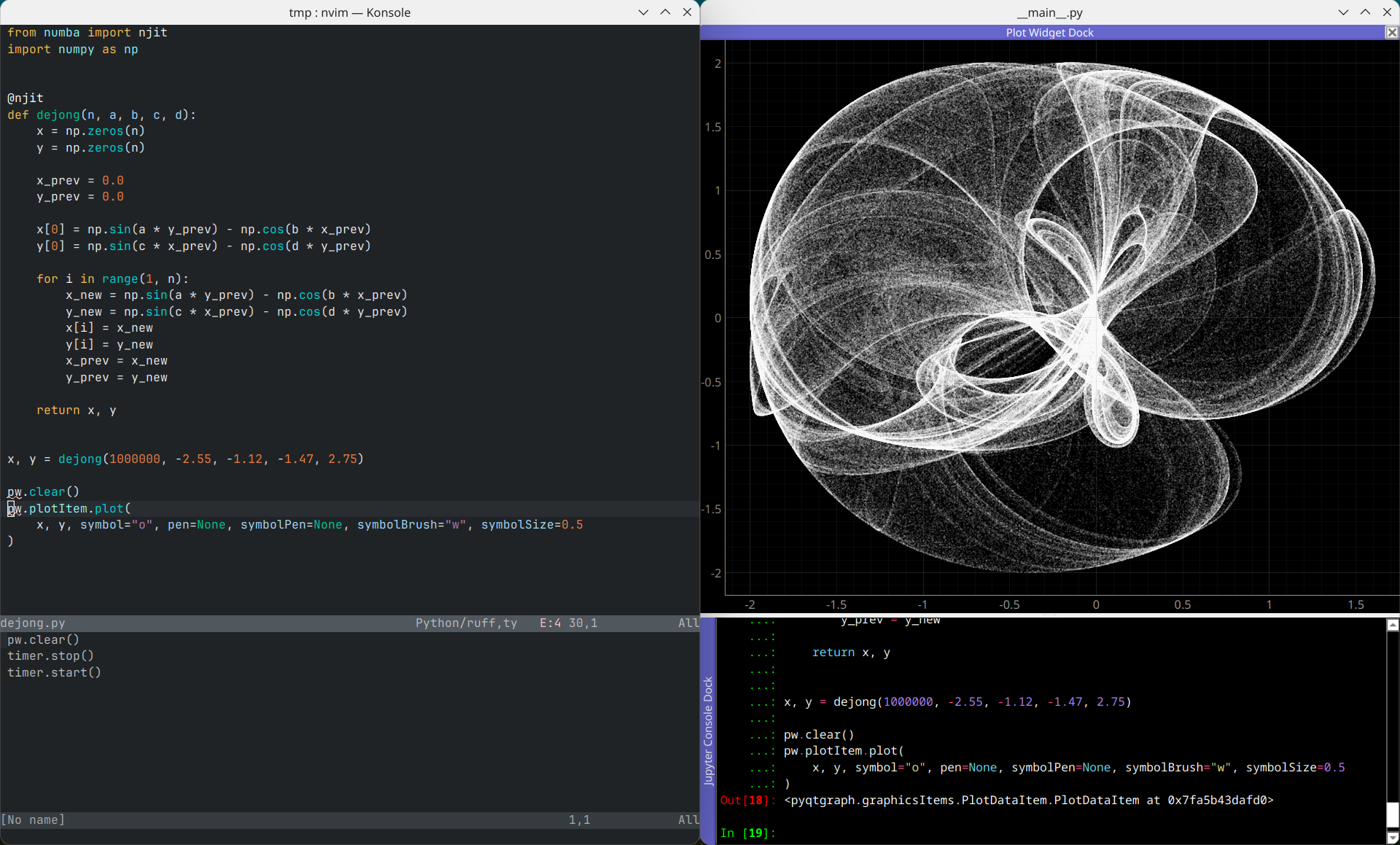
I've been building a mathematical exploration and visualisation tool using PyQtGraph which is an unreasonably fast Python graphics library. Part of the tool has an integrated text editor with an embedded Jupyter console linked to a plot widget, the idea being that you can interactively plot and explore mathematical expressions. I decided the write a small Neovim plugin around this idea, and this post will walk through the core parts of the code for the plugin and how it works. The full code can be found here.
The plugin has two parts to it. The Neovim side written in Lua, which essentially just takes the code you want to evaluate and sends it to the console, and a Python process which runs and controls the PyQtGraph Jupyter console and plot widget The console and plot widget section is taken and adapted directly from the PyQtGraph Rich Jupyter console example.
Neovim doesn't actually have anything to do with the plot rendering or console control. It starts the Python process and registers commands to interact with the console:
:PlotReplStart
:PlotReplSendLine
:PlotReplSendBuffer
:PlotReplSendSelection
The process is tracked with a job_id which gets checked before sending any
code to ensure the process is still live and starts it if it isn't.
The process is started with a piped stdin:
job_id = vim.fn.jobstart(config.command, {
  cwd = plugin_root,
  stdin = "pipe",
})
which essentially creates a communication channel between Neovim and the Python process.
When code is sent from Neovim it gets sent as a JSON message:
local message = vim.json.encode({
  op = "execute",
  code = code
})

vim.fn.chansend(job_id, message .. "\n")
So a line like
pw.plot([1, 2, 3])
gets sent as
{"op": "execute", "code": "pw.plot([1, 2, 3])"}
The Python side reads stdin line by line:
for line in sys.stdin:
    message = json.loads(line)
If the message contains op == "execute" it extracts the code and emits a Qt
signal:
bridge.execute_requested.emit(code)
so rather than executing the sent code on the stdin reader thread it gets passed to the background Qt thread. The main application connects the signal into the window:
bridge.execute_requested.connect(window.executeFromEditor)
Once the code has been read it gets executed by the console:
def executeFromEditor(self, code: str):
    self.jupyter_console_widget.execute(code)
The Jupyter console namespace gets loaded with some useful names:
kernel.shell.push({
    "pg": pg,  # PyQtGraph
    "pw": self.plot_widget  # the live plot widget
})
This is the core idea behind what the plugin is doing, and again the full code can be found here.
Tags: visualisation, python, neovim